How to Get Your Rebate for App Store & Play Store Subscriptions
Modified on Wed, 9 Sep at 2:49 PM
If you subscribe to an eligible service through the App Store or Play Store, your rebate may not be applied automatically. This guide covers why it happens, how to set things up so it doesn't happen again, and what to do if you've already missed a rebate.
- why it happens,
- how to set things up so it doesn't happen again, and
- what to do if you've already missed a rebate.
This article only applies to subscriptions for merchants eligible for rebates — see the full list in Subscription Rebates.Why this matters
Wirex identifies eligible subscription charges through merchant matching. We check the merchant information on the transaction to confirm the payment was made to an eligible service, such as ChatGPT Plus, Claude Pro, or Uber One.
If you purchase a subscription through a third-party app store or payment platform, such as the Apple App Store or Google Play, the transaction may appear under the platform's merchant name — for example, APPLE.COM/BILL, ITUNES, or GOOGLE — rather than the name of the subscription service.
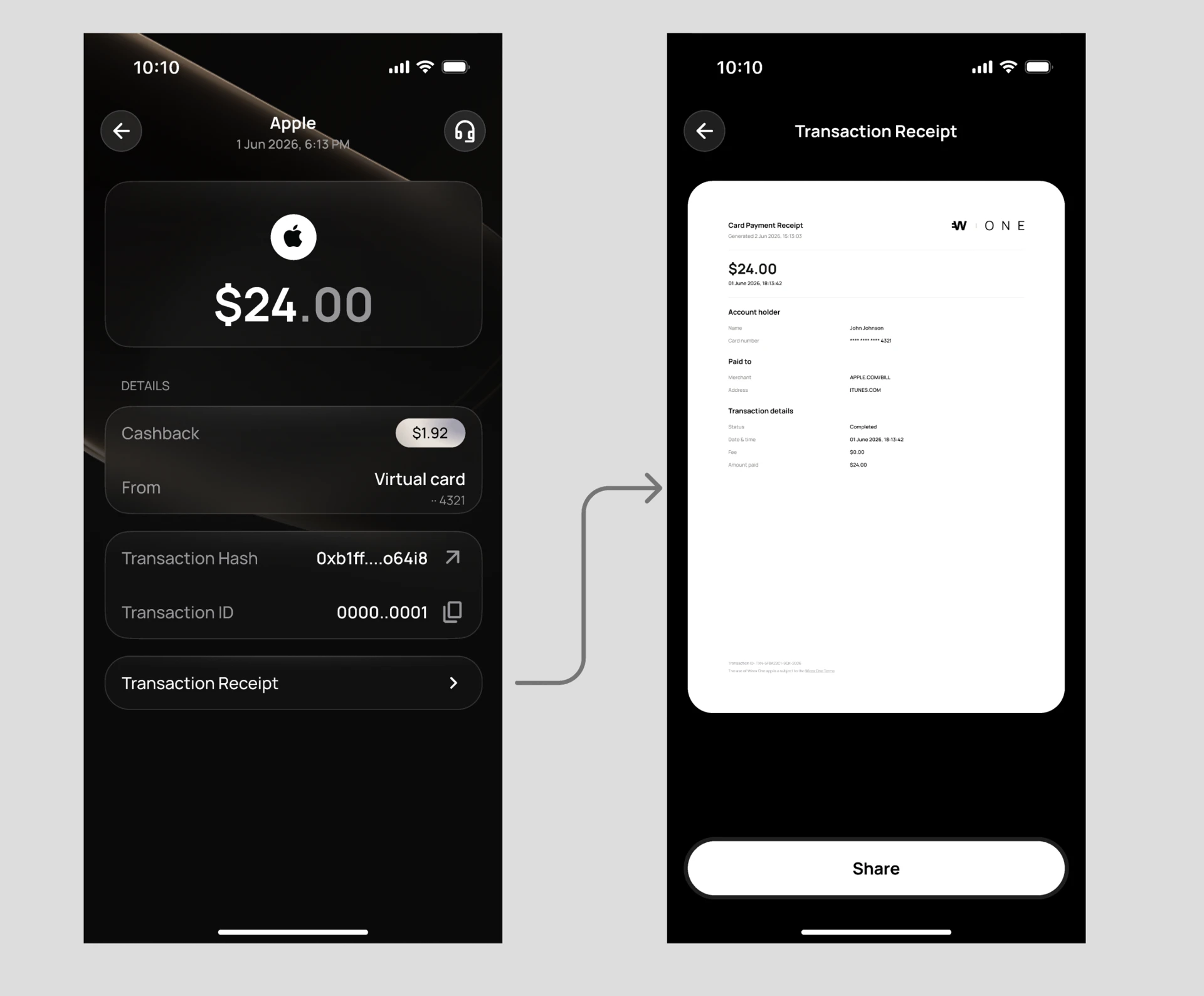
In some cases, the transaction includes enough information for Wirex to identify the underlying service. However, if the subscription can't be identified from the transaction details, we can't automatically verify its eligibility and the rebate may not be applied.
To help ensure your subscription is recognised, we recommend subscribing and paying directly with your Wirex card through the service provider, where available.
How to make sure you receive the rebate
To have the rebate applied automatically every month, pay for the subscription directly through the provider — not through the App Store or Play Store — using your Wirex One card as the payment method.
1. Cancel the store subscription
Cancel your subscription in the App Store or Play Store first. Most providers won't let you add or change a payment method while billing is still routed through Apple or Google — you'll need to resubscribe directly instead.
2. Go to the provider directly
Open the subscription's website (not the App Store or Play Store listing) and resubscribe from the provider's own account settings.
3. Add your Wirex One card
Set your Wirex One card as the payment method during checkout. You don't have to enter the card directly — paying via Apple Pay or Google Pay with your Wirex One card set as the underlying card also works, as long as checkout happens on the provider's own site or app, not through in-app purchase / App Store or Play Store billing.
4. Rebate auto-detected
Because the charge now settles with the provider's own merchant name, Wirex can match it automatically — no further action needed.
Cancelling and resubscribing may briefly interrupt your access, and you could lose any trial period, discount, or promo rate tied to the original subscription. Check the provider's terms before switching.If you've already paid via App Store or Play Store and didn't get a rebate
You can still claim the rebate manually for charges that were billed through the app store.
1. Get your receipt
Get the receipt from the provider (e.g. your ChatGPT Plus receipt), not from Apple or Google — it needs to show:
- service name
- price
- billing date
- the last 4 digits of the card used, so support can verify it's your Wirex One card
2. Contact support
Reach out to Wirex support and let them know you paid via App Store or Google Play for an eligible subscription rebate.
3. Attach the receipt
Provide the receipt as proof of payment for the eligible service.
4. Rebate applied manually
Once verified, your rebate is credited manually for that billing cycle. Since this is a manual process, it may not be credited right away — if it isn't processed in time, it can be included in the next rebate payout cycle instead.
Manual rebate requests must be submitted per billing cycle. This is a one-time fix for past charges — it doesn't change how future charges are detected. To get the rebate automatically next month, follow the steps above to switch your billing to the provider directly (or via Apple Wallet / Apple Pay, not in-app purchase).Related articles
Still have questions?
Our support team is here to helpWas this article helpful?
That’s Great!
Thank you for your feedback
Sorry! We couldn't be helpful
Thank you for your feedback
Feedback sent
We appreciate your effort and will try to fix the article