How to Add and Manage Recipients
Modified on Tue, 23 Jun at 2:26 PM
Save your recipient details once — and every future transfer takes seconds. Wirex One keeps your recipients organised and searchable, so paying someone you've sent to before is effortless.
Adding a new recipient
Recipients are created automatically when you complete a transfer for the first time. You can also add them during the send flow:
Tap Send → select a method (Bank Account, Card, or Onchain Transfer).
Tap Add New.
Enter the recipient's details for the selected method:
- Bank Account: name, IBAN + BIC (SEPA), account number + routing number (ACH), or account number + sort code (Faster Payments)
- Debit or Credit Card: card number, cardholder first and last name
- Onchain Transfer: label (nickname), wallet address, network, Memo (if required)
Tap Continue to proceed with the transfer. The recipient is saved automatically on success.
Finding a recipient
On the Send Money screen, your recipients are sorted by most recently used. You can also search by:
- First name
- Last name
- Company name
- Nickname (for onchain recipients)
Start typing in the search bar and matching recipients appear instantly.
Deleting a recipient
On the Send Money screen, find the recipient you want to remove.
Swipe left on their name.
Tap Delete and confirm.
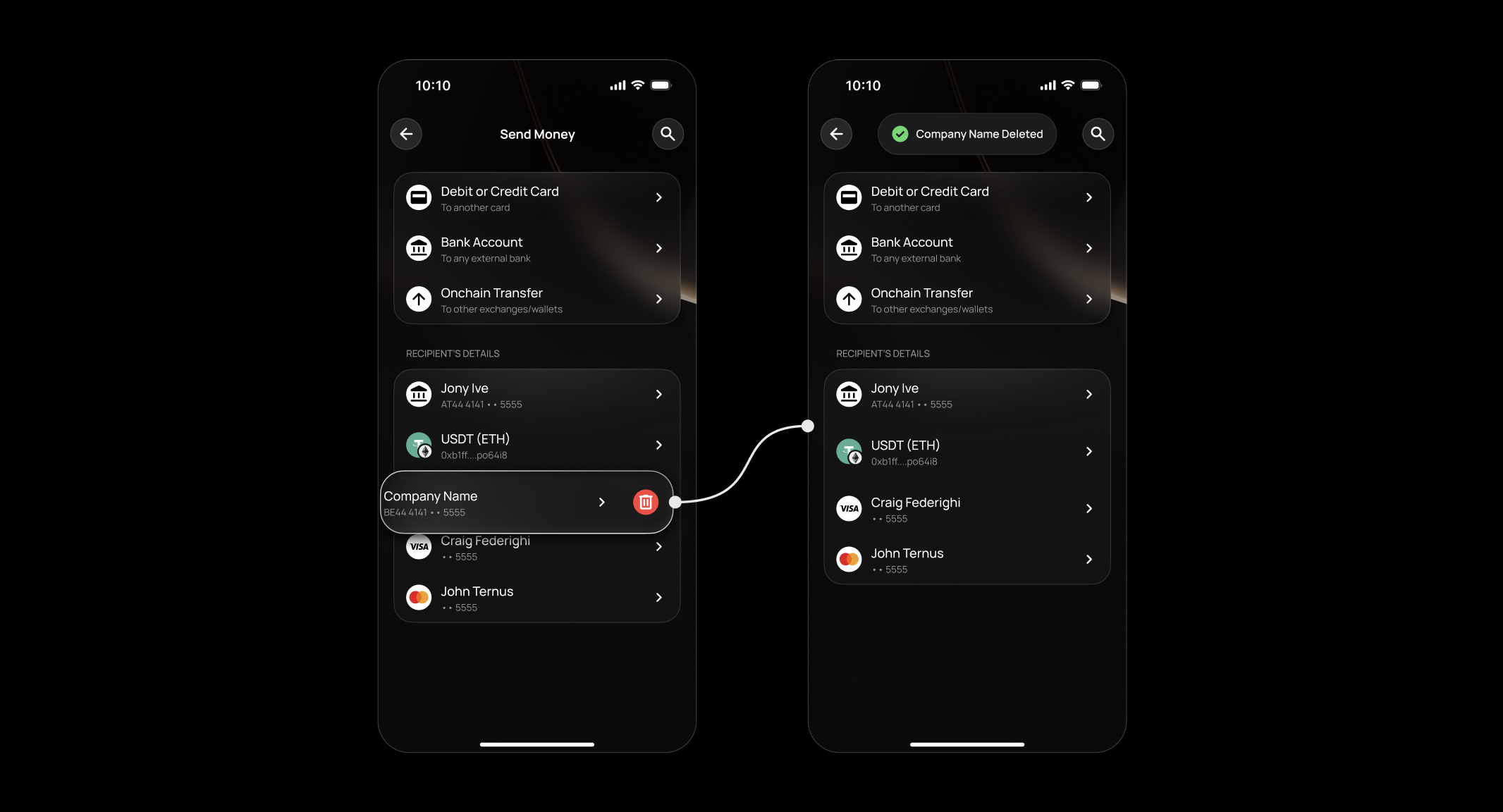
The recipient is removed immediately. Any past transactions with them remain in your Activity.
Deletion is permanent — deleted recipients cannot be recovered. You'll need to re-add their details manually.FAQ
How many recipients can I save?
Can I edit a saved recipient's details?
Can one recipient have multiple payment methods?
Are recipients shared across all my accounts?
I deleted a recipient by mistake — can I recover them?
Why can't I find a recipient I saved?
Still have questions?
Our support team is here to helpWas this article helpful?
That’s Great!
Thank you for your feedback
Sorry! We couldn't be helpful
Thank you for your feedback
Feedback sent
We appreciate your effort and will try to fix the article